
Just the other day, I was working with one of my doctoral students who needed to illustrate how to perform specific statistical calculations—like averages, standard deviations, and correlations—using survey data in a spreadsheet. I used this exact AI-assisted process to build an interactive HTML table that visually walked through each step, showing which cells to select and what formulas to use in Excel. These step-by-step worked examples allowed my student to complete the needed statistical calculations for part of their study.
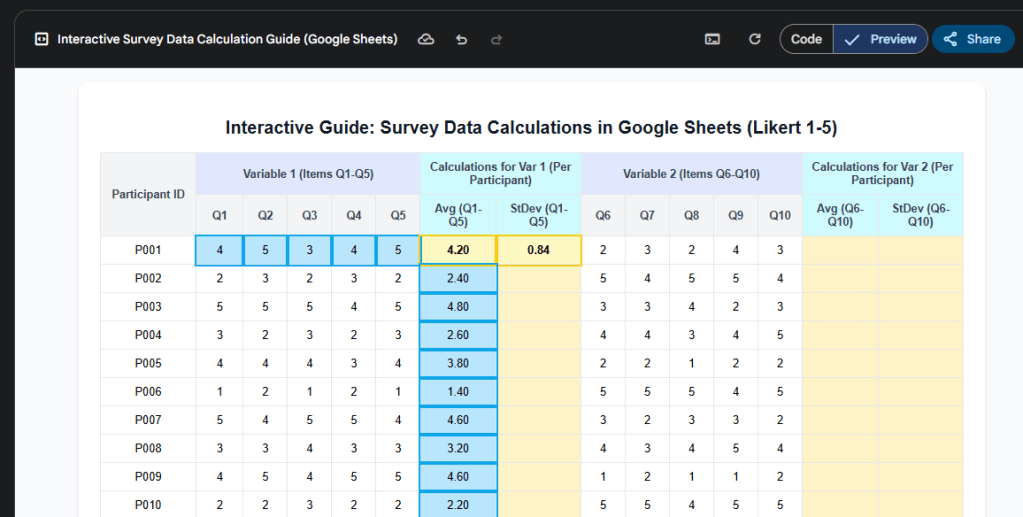
Beyond this example at the doctoral level, it can be applied across K-20 education for all grade levels and content areas. Picture this: you can provide interactive, step-by-step worked examples for just about anything – math problems, ELA sentence structures, science processes, you name it. And here’s the best part: you absolutely do not need to be a coding expert to pull this off. We’ve got powerful AI tools at our fingertips, like Gemini with its fantastic Canvas feature, ChatGPT, and even Claude with its own Canvas capabilities, all ready to help us build these engaging and instructional sound resources. These aren’t just fancy add-ons; they’re practical tools to move beyond static textbook examples and create truly interactive learning moments that boost understanding and empower our students.
Now, building these isn’t a one-shot deal where the AI does everything; it’s a collaborative effort. Think of it as having a super-powered teaching assistant. For instance, I recently teamed up with Gemini to create an interactive HTML guide showing students how to convert linear equations from standard to slope-intercept form. The magic happened when I was really specific with my instructions – my prompts. I clearly laid out the math problem, what I wanted the final HTML guide to look like and do, and the kind of step-by-step interactivity I envisioned. It’s a bit like storyboarding a mini-lesson. The AI then generated the initial HTML. From there, we tweaked it – for example, making sure the math notations looked right on a webpage. This back-and-forth, this iterative process where you guide the AI and then review and refine its output, is absolutely key. It’s how we ensure the final product is perfectly suited to our students and our specific teaching goals.
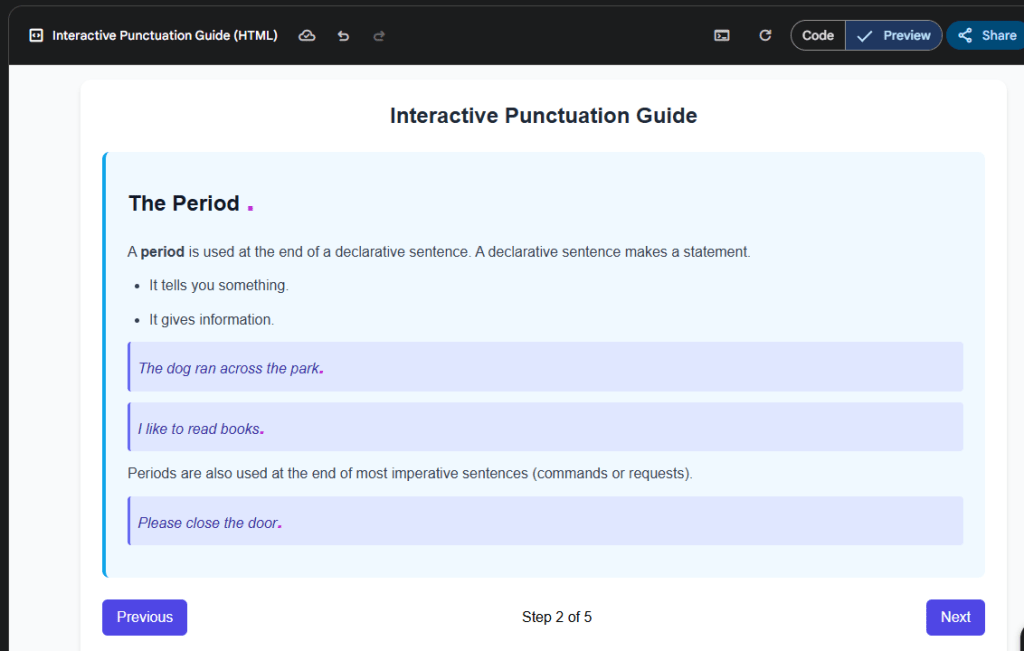
How to Deploy Your New Interactive Worked Example
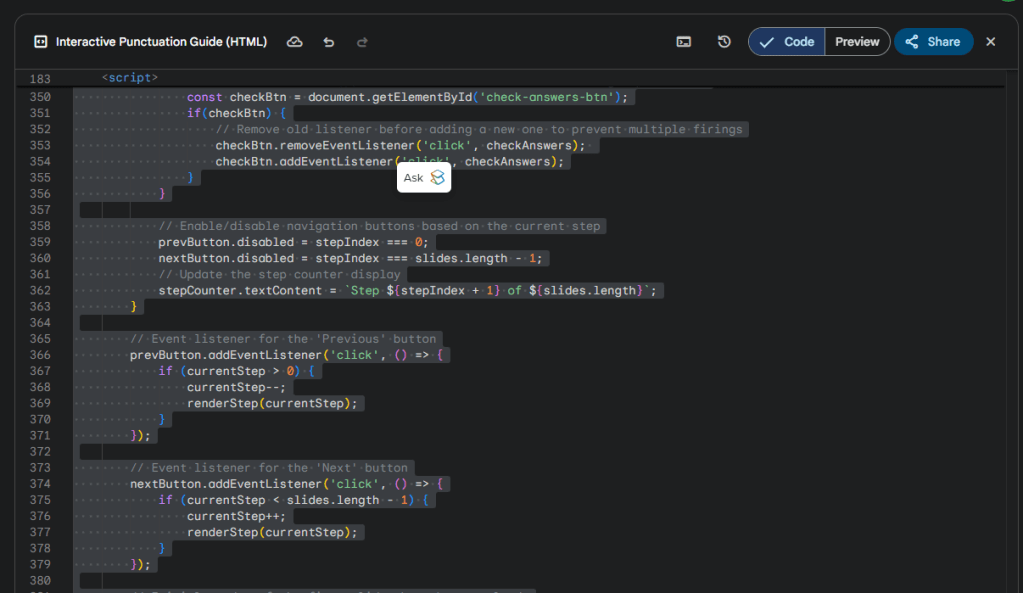
Once your AI assistant has generated the code for your interactive example (which you’ll see in a dedicated space like Gemini’s Canvas), the next step is to bring it to life as a standalone file. Simply select all the code provided by the AI and copy it. Then, open a basic text editor on your computer – Notepad on Windows or TextEdit (in plain text mode) on a Mac will work perfectly. Paste the copied code into a new, blank file. The crucial part is saving this file: give it a descriptive name and, most importantly, end the filename with the .html extension (for example, slope_guide.html or ela_sentence_diagram.html). This tells your computer that it’s a web page.
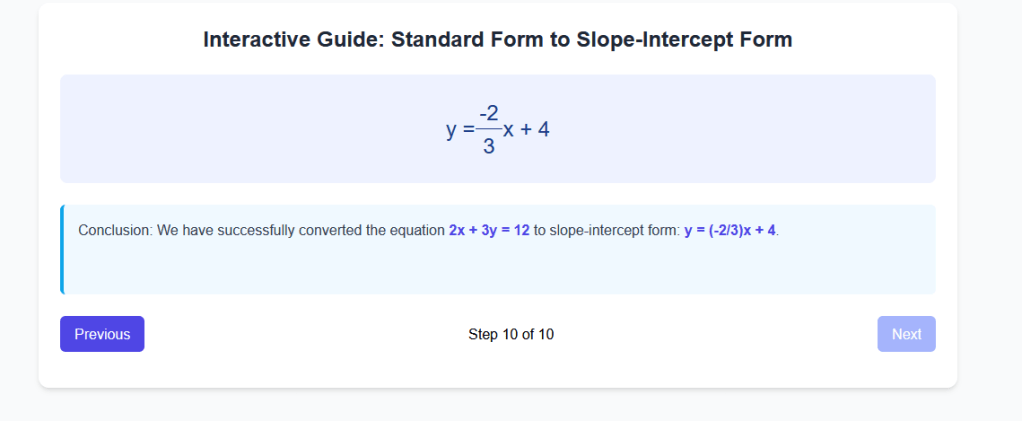
With your .html file saved, you can easily test your new interactive example. Just locate the file on your computer and double-click it. It will open in your default web browser (like Chrome, Edge, Safari, or Firefox), and you’ll be able to interact with it just as your students would. This is a great time to click through all the steps, check for any errors, and ensure the explanations are clear. It’s your quality control step before sharing it with your class, allowing you to catch any little quirks or areas that might need further clarification from the AI.
Add to your LMS for Student Access
Finally, getting these interactive examples to your students is straightforward with most Learning Management Systems (LMS). Many LMS platforms, like Canvas (the LMS, not to be confused with Gemini’s feature!), or Google Classroom, allow you to upload HTML files directly, which students can then open and use. Even better, for a more seamless experience, look for options to embed HTML content directly into an LMS page or assignment. This often involves pasting the HTML code into a special “HTML editor” view within your LMS, making the interactive example appear as a natural part of your course content. By leveraging AI to create these resources, you can significantly enhance your teaching toolkit and provide rich, engaging learning opportunities for all your students.
 Navigating the Present and Future of Education
Hi Matthew,
Thanks so much for this inspiring post. I really love the idea of using AI to create interactive, step-by-step learning tools. I’ve tried following the process you described using Gemini Canvas and copying the code into Notepad to create a .html file, but when I open it in my browser, it just displays the raw code rather than a working activity.
I’m wondering if you could explain in a bit more detail how you go from the Gemini-generated code to a functioning, shareable HTML file? Would really appreciate any guidance. I’d love to use this approach but haven’t yet found a way to make it work smoothly. Thanks again for sharing your ideas!
Best wishes
Joe
LikeLike
Hey Joe,
Thanks! What you need to do is copy the html and put it into your notepad app. Then, after copying your notepad, save it as a .html as the file name – for example, abc.html This will then allow you to open it up correctly to be interactive. Hope this helps!
LikeLike
Hi Matthew,
Thanks for your prompt reply. That is exactly what I did and when I click on the html file it just displays the code not the activity.
Best wishes
Joe
LikeLike
Very odd. Is the code Gemini generated in HTML? I recommend double-checking. That might be it.
LikeLike
Hi Matthew,
Thanks again for your reply. I’m pretty much a novice in this area, but ChatGPT said that the code Gemini Canvas generates is actually written in JSX (React), not plain HTML. That seems to explain why saving it as a .html file and opening it in a browser just shows the raw code “browsers can’t interpret JSX without it first being compiled”.
Do you know if there’s a way to get Gemini to output plain HTML and JavaScript instead? Would love to understand your process a bit more. I think the approach has huge potential.
Best wishes
Joe
LikeLike
Yes, in your prompt, command Gemini to produce HTML code. This is what I do and it works every time.
LikeLike
That worked! You’re a star! Any ideas on being to embed an activity into Book Creator?
LikeLike
Fantastic! Not sure. But you may be able to embed or even upload the files into it.
LikeLike
i’ve tried using the HTML code in the embed option in book creator but unfortunately it doesn’t recognise it. I will carry on experimenting!
LikeLike
Definitely! Let me know what you are able to find.
LikeLike