
As teachers designing learning opportunities, we are constantly seeking strategies that don’t just cover the curriculum but build deep, lasting knowledge. One of the most powerful, research-backed strategies for achieving this is retrieval practice. This is the act of actively pulling information out of one’s memory. For decades, cognitive science has shown us that this process does more to strengthen memory than simply re-reading notes or listening to a lecture again.
The “testing effect,” a term championed by researchers like Roediger and Karpicke, demonstrates that every time a student actively recalls information, they strengthen the neural pathways associated with it. This effortful retrieval tells the brain that the information is important and makes it easier to access in the future. Ultimately, over time, if students are able to actively recall correctly, this means the likelihood of them learning the content, is much higher. Although the challenge for teachers has always been the time it takes to create a rich variety of material, such as flashcards, practice tests, and quizzes, that facilitate this process.
With powerful AI tools, we can now create engaging, interactive retrieval practice activities in minutes. Tools like Gemini, Claude, and ChatGPT have built-in “Canvas” features that can generate the code for these resources, and you don’t need to be a coding expert to use them.
From Static Content to Interactive Recall
The goal of retrieval practice is to move students from passive review to active recall. Instead of just looking at a completed diagram of a plant cell, what if they had to fill in the labels themselves? Instead of re-reading vocabulary definitions, what if they had to actively guess the term from an interactive flashcard?
This is where AI becomes our super-powered teaching assistant. It’s a collaborative effort. By providing clear, specific prompts, we can guide the AI to build customized HTML activities tailored perfectly to our lessons. It’s a bit like storyboarding a mini-lesson; you lay out the content and the interactive elements you envision, and the AI generates the code to bring it to life. This back-and-forth, where you guide the AI and then review and refine its output, is key to creating a polished final product for your students.
Here are a few ideas to get you started: Please make sure to use HTML in your prompt to ensure it develops the interactive activity on the AI’s Canvas.
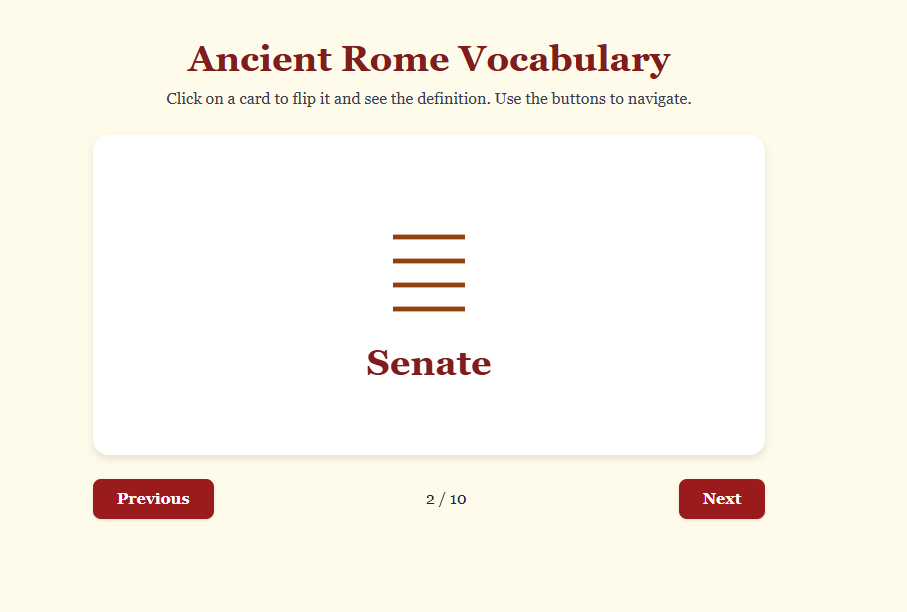
- Interactive Flashcards: Prompt the AI to create a set of clickable flashcards. Example Prompt: “Create an interactive HTML file with flashcards for key vocabulary from our unit on Ancient Rome. The front of each card should have the term (e.g., ‘Aqueduct,’ ‘Senate,’ ‘Gladiator’), and the back, which is revealed on a click, should have its definition.“

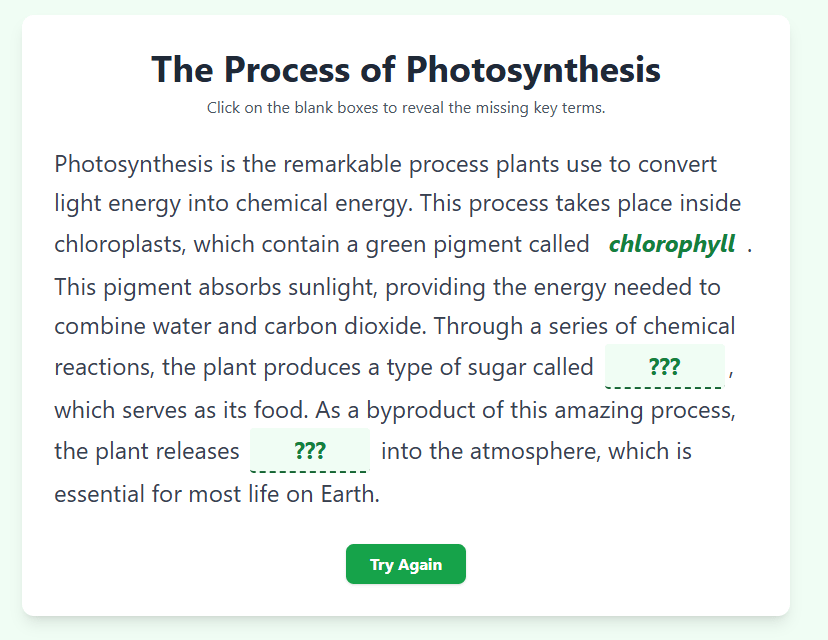
- Fill-in-the-Blank Slides: Turn a summary slide into a retrieval challenge. Example Prompt: “Generate an HTML slide that displays a paragraph summarizing the process of photosynthesis. Omit the words ‘chlorophyll,’ ‘glucose,’ and ‘oxygen’ and replace them with interactive blank boxes that reveal the correct term when clicked.“
- Low-Stakes Practice Tests: Quickly generate quizzes that provide immediate feedback, which is crucial for self-correction. Example Prompt: “Build a 5-question multiple-choice practice test in an HTML file on converting fractions to decimals. After a student clicks an answer, immediately show them if it was correct and provide a brief explanation.”

How to Create and Deploy Your AI-Generated Activity to Boost Retrieval Practice
Once you’ve collaborated with the AI and are happy with the interactive resource in the Canvas, bringing it to your students is a simple, four-step process.
1. Copy the Code: Select all of the HTML code generated by the AI assistant and copy it to your clipboard.
2. Create the File: Open a basic text editor on your computer (Notepad on Windows or TextEdit on a Mac works perfectly). Paste the copied code into a new, blank file.
3. Save as an HTML File: This is the most important step. Save the file with a descriptive name, but make sure you end the filename with the .html extension. For example: roman_vocab.html or photosynthesis_quiz.html. This extension tells your computer to open it as a web page.
4. Test and Share: Locate the file on your computer and double-click it. It will open in your web browser, allowing you to test it just as your students would. Finally, you can easily share this file through your Learning Management System (LMS). Most platforms like Canvas, Google Classroom, or Schoology allow you to upload .html files directly or embed the code into a page for a seamless experience. Students will then download the file directly to their computer with a single click. Then, it will appear directly in their web browser.
Moving Forward
The power of retrieval practice is well-established, but the time required to create high-quality materials has often been a significant hurdle. Now, that barrier is lower than ever. We’ve seen how you can collaborate with an AI assistant to build interactive flashcards, fill-in-the-blank challenges, and low-stakes quizzes in a matter of minutes. The question is now yours to answer: What is the first topic that comes to your mind? How will you use this AI integration this week to create a new retrieval practice opportunity that will engage your students and empower them to take ownership of their learning?
 Navigating the Present and Future of Education